
To catch Santa in your house, take a photo of the room with your tree (or your front door), upload it here and choose a camera. The AI turns your photo into 8 seconds of security-camera footage of Santa leaving gifts in that exact spot. Videos start at 50 credits; a still proof photo is 10 credits.
What does “catch Santa in my house” make?
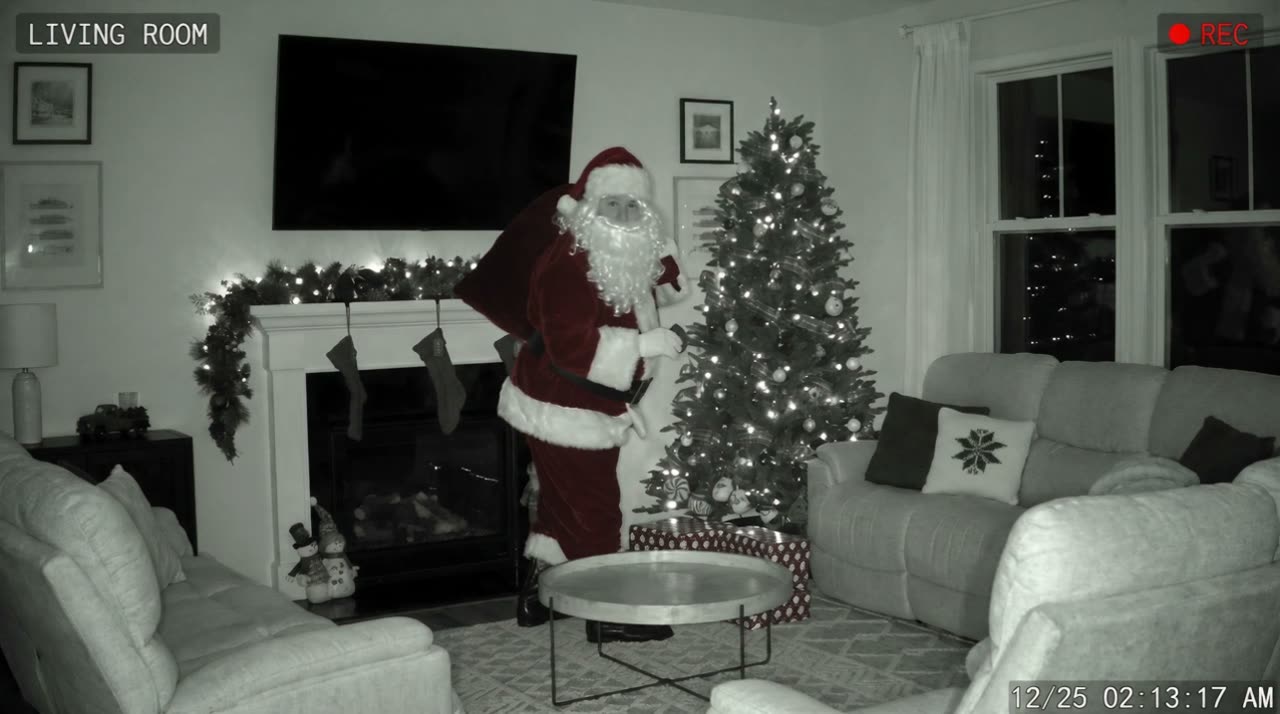
It makes a short video that looks like it came off your own home camera on Christmas Eve. Your room stays your room: the same tree, sofa, rug and lights from your photo. The camera adds its timestamp and grainy night-vision look, and Santa walks in, puts the presents down, notices the camera and puts a finger to his lips.
There are three video cameras. The living-room night-vision camera watches your tree from a high corner: Santa tiptoes in, leaves gifts and takes a cookie. The doorbell camera looks out from your front door through a fisheye lens: Santa walks up the path, leaves presents on your doormat and leans right into the lens. The front-yard camera faces your house from across the yard: Santa leaves gifts at the door, then turns and winks at the camera. Each video is 8 seconds, landscape 16:9, with quiet night sounds, distant sleigh bells and Santa whispering “Merry Christmas” to your child by name (or just “Merry Christmas” if you leave the name empty).
Prefer a still? Choose Photo and get one high-resolution picture of Santa in your home, either as a camera screenshot or as a blurry “I caught him!” phone snapshot by the tree.
How to catch Santa in your house in 3 steps
Most parents do this the evening before Christmas or late on Christmas Eve, once the presents are wrapped.
- 1
Take a photo of the spot
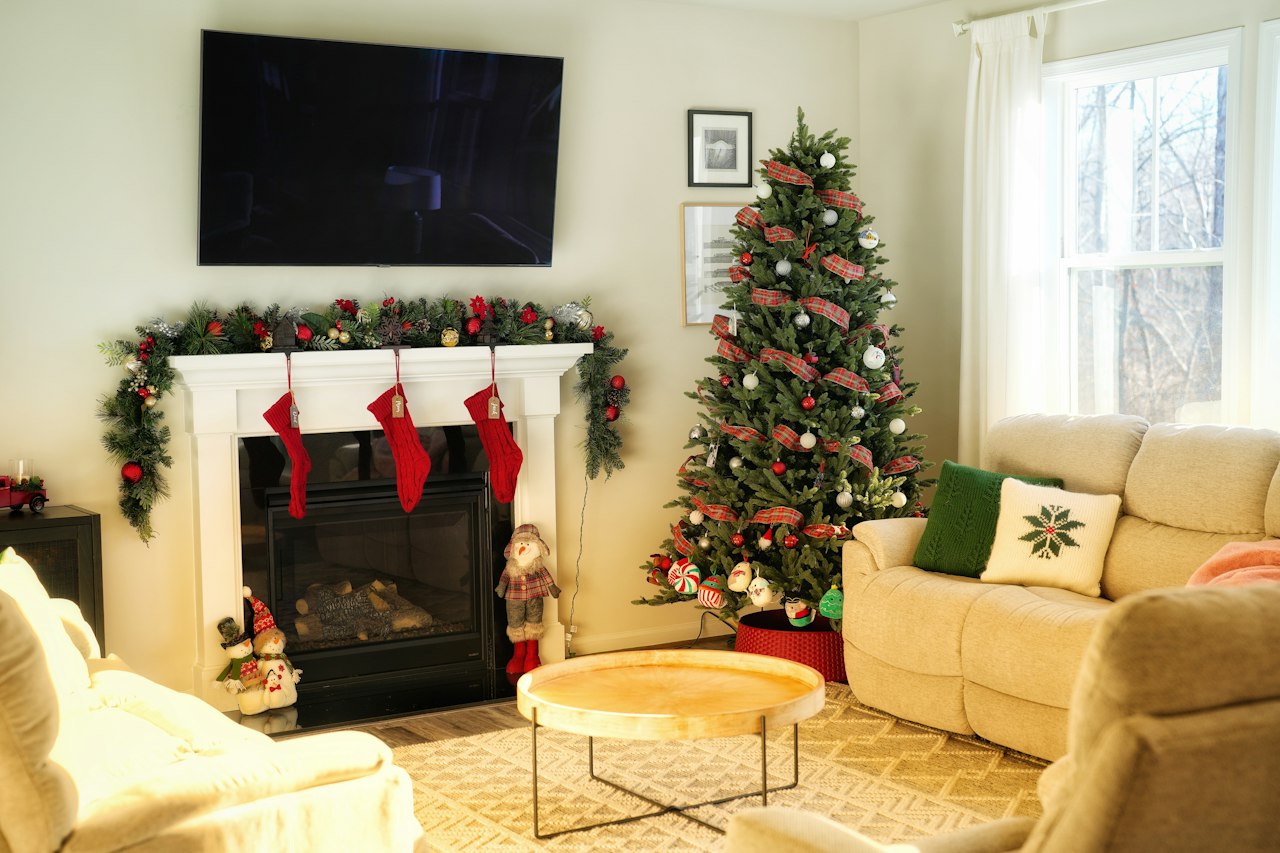
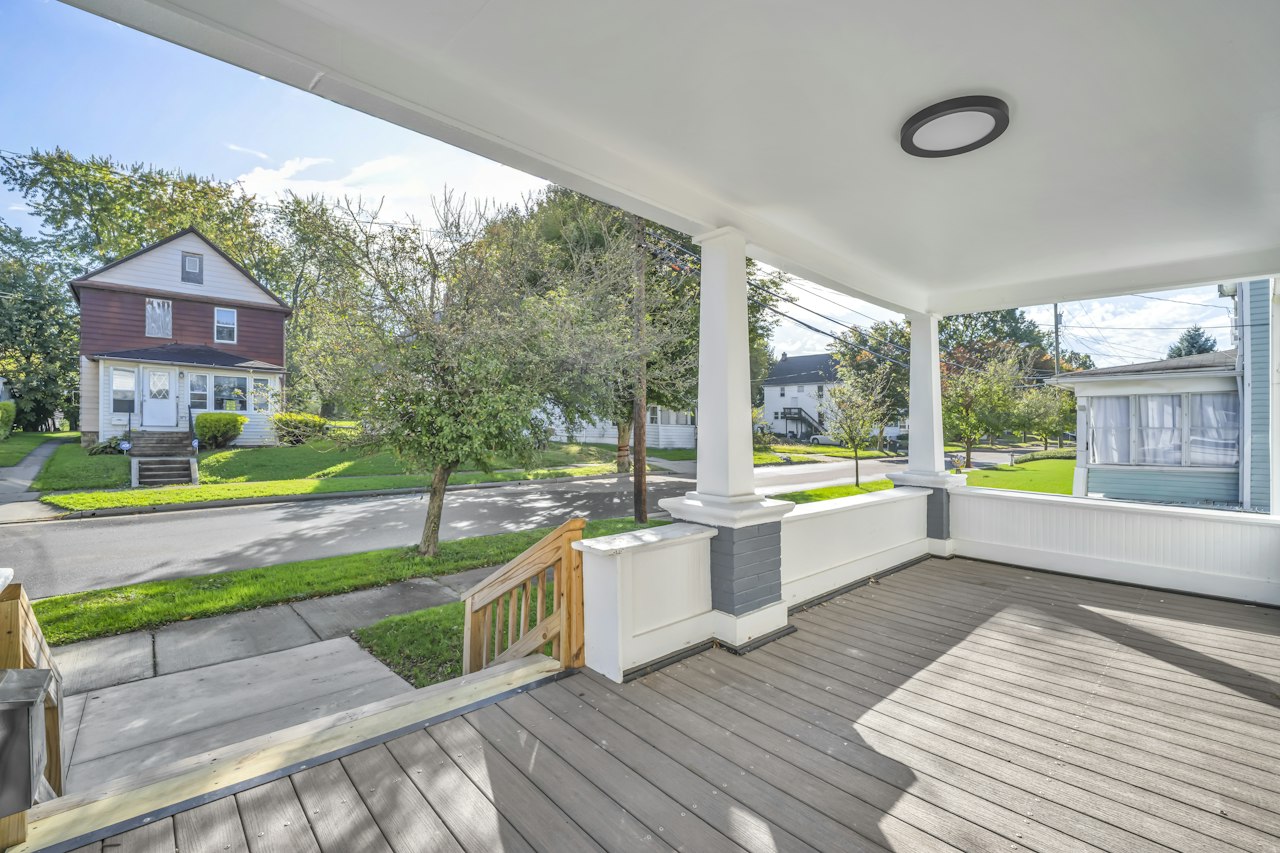
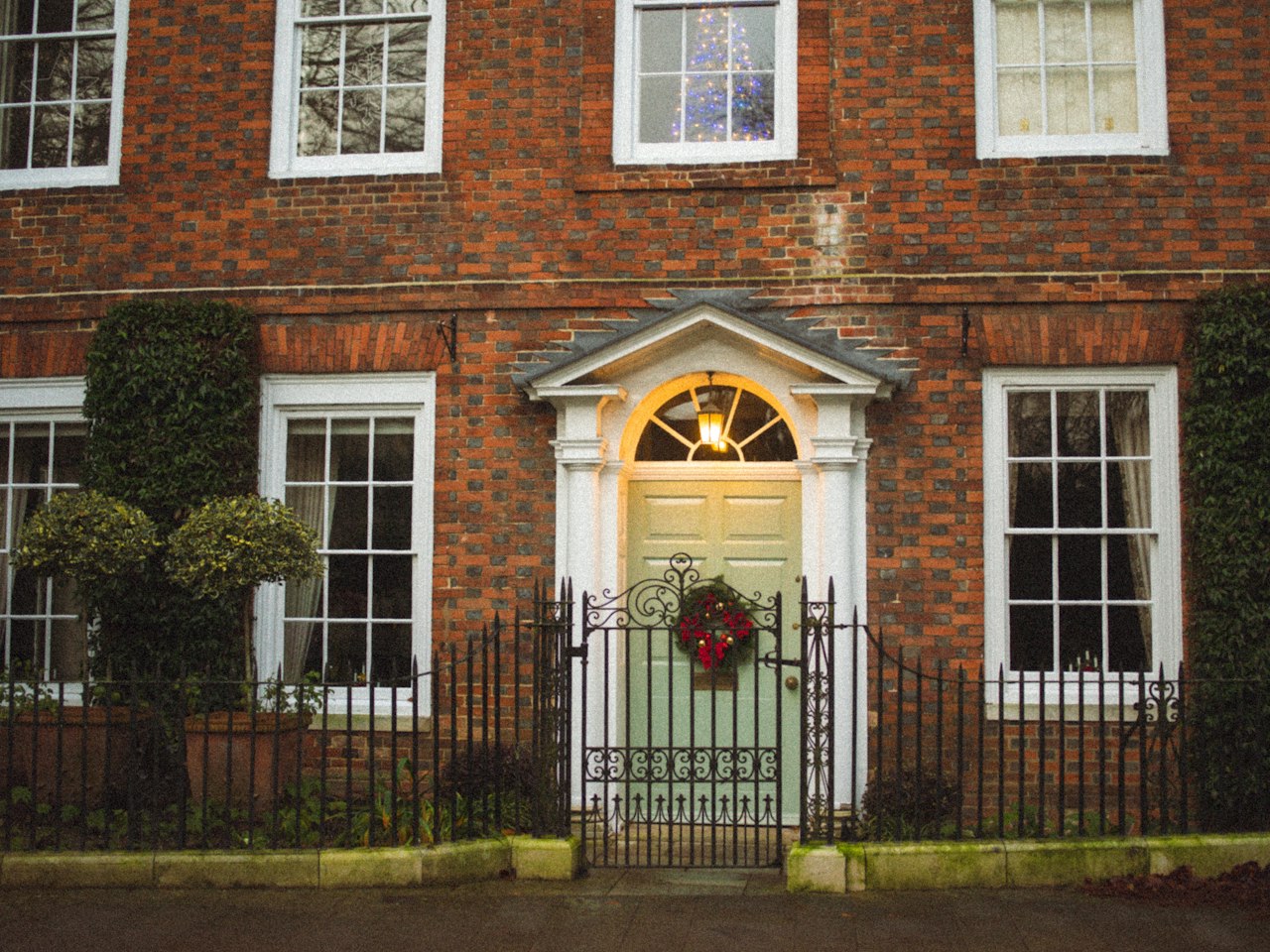
For the living-room camera, stand in a corner of the room and take a landscape photo with the tree and the lights on. For the doorbell camera, stand in your doorway and photograph outward from chest height (mat, steps, path). For the front-yard camera, photograph the front of your house from the yard. Keep the porch light on. Leave everyone out of the picture.
- 2
Upload it and choose a camera
Pick the night-vision or doorbell camera, then Video (Standard 50 credits, HD 100 credits) or Photo (10 credits). There is no prompt to write.
- 3
Show the footage on Christmas morning
Download the MP4 or JPG. A video takes a few minutes, a photo about one. Many families “check the camera” together after opening presents.
Photo tips for a believable result
The AI keeps whatever is in your photo, so a good photo of the room is most of the magic.
- Shoot from a corner, a little above head height if you can: that is where real indoor cameras sit.
- Keep the tree, the fireplace or the spot where presents go fully in frame, with some floor in front of it.
- Turn the tree lights on; they show up as glowing dots in night vision.
- Landscape (horizontal) photos fit the 16:9 camera frame best.
- No people or pets in the photo. Santa is the only one on camera.
- Use a photo of your own home. Do not upload someone else’s house.
Is there a catch Santa in my house app?
Yes, several apps add Santa to a photo you take with your phone camera, and most of them make a picture, not a video. This site works in your phone’s browser instead: nothing to install, and you get real camera-style footage with motion and sound. If you only want a picture, the Photo option does that too. See the catch Santa app comparison.
How much does it cost?
You buy credits once and they never expire: a 8-second Standard video is 50 credits, HD is 100 credits, and a photo is 10 credits. If a video or photo fails, the credits go back to your balance automatically. There is no subscription, and paid videos and photos have no watermark. Credit packs are on the pricing page.
When the free preview is open, each Google account can also make one small preview photo with a “PREVIEW” watermark for 0 credits, in any camera style, to see Santa in your room before you buy. It is one try, always a photo, and not redone if it fails. Sign in with Google to check whether it is available.
More ways to catch Santa on camera
Want only the doorbell version, or the night-vision one? Each has its own page with tips: Santa ring camera video, Santa security camera footage and Santa caught on camera with AI.
Questions parents ask
How do I put Santa in my living room for free?
Free tools can paste a cartoon Santa onto a photo, but they rarely match your room. Here full results are paid: a photo costs 10 credits and a 8-second video 50 credits, and the credits for a failed result go back to your balance. When the free preview is open, each Google account can make one small watermarked preview photo of Santa in your room for 0 credits; sign in with Google to check.
How do I make it look like Santa was in my living room?
Take a corner photo of the room with the tree lights on, upload it, and choose the night-vision camera. The video keeps your exact room and adds Santa leaving presents, with a camera timestamp from the early hours of December 25.
Will my kids be able to tell it is AI?
Young children usually accept it, especially in grainy night vision where small details are hidden. Older kids may look closely. It is a bit of Christmas magic; how and when you share it is up to you.
Can I use a photo with my children or pets in it?
No. Upload an empty room or front door. Photos with people are removed from the result anyway, and photos of children are not allowed. Santa is the only one in the video.
What happens to my photo?
It is uploaded privately when you start, used only to make your result, and normally deleted within 24 hours. Your finished videos and photos stay private in your account until you delete them in My videos.
How long does it take?
A photo takes about a minute. A video takes a few minutes because the camera frame is made first, then Santa’s visit. You can leave the page; it appears in My videos.
Is there a watermark?
Not on paid videos and photos: the only text on screen is the camera’s own label and timestamp. The free preview photo is the exception: it is small and carries a “PREVIEW” watermark.
Can I make one for each child or each room?
Yes. Make as many as your credits allow, one at a time: a doorbell video for the porch, a night-vision video for the tree, a photo for the fireplace.